Breathing Sessions
Master your breathing practice
Breathing sessions are guided exercises that walk you through specific breathing patterns. Oxy, your oxygen bubble companion, breathes along with you while voice guidance, ambient sounds, and visual cues keep you on rhythm.
Starting a Session
There are several ways to begin a breathing session in Respiro:
- From a Space: Browse the Spaces page, choose a space like Calm or Focus, and tap a routine to start
- From the Home Screen: Tap Quick Reset for instant box breathing, tap Meditation to enter the Meditation Space, or tap Oxy directly
- From the Planner: Tap a scheduled session in your Planner calendar to start it at the planned time
- From an Article: Every article includes a "Try This Exercise" widget with a relevant breathing pattern, Oxy encouragement, and a "Start Breathing" button that launches the session directly
When you start from a breathing space, the session inherits that space's breathing pattern (timing is locked to the routine). When you start from the home screen or planner, you can customize the pattern freely in settings.
Warming Up
When voice guidance is enabled, Respiro prepares an AI-generated audio session before you begin. During this loading phase you will see:
- Oxy breathing calmly with a "Warming up..." message and progress bar
- A tips grid with preparation advice: use headphones, find a quiet space, sit comfortably, close your eyes, turn on Do Not Disturb, and let go of expectations
- A play button that appears once the audio is loaded and ready
Tap the play button to begin your session. The minimum loading time is 5 seconds so you always have a moment to settle in.
Pre-Session Check-in PRO
Pro members see a quick mood and energy check-in before each session starts. Rate how you're feeling right now so Respiro can track how your breathing practice affects your wellbeing over time. You can skip the check-in if you prefer to start immediately.
The Session Interface
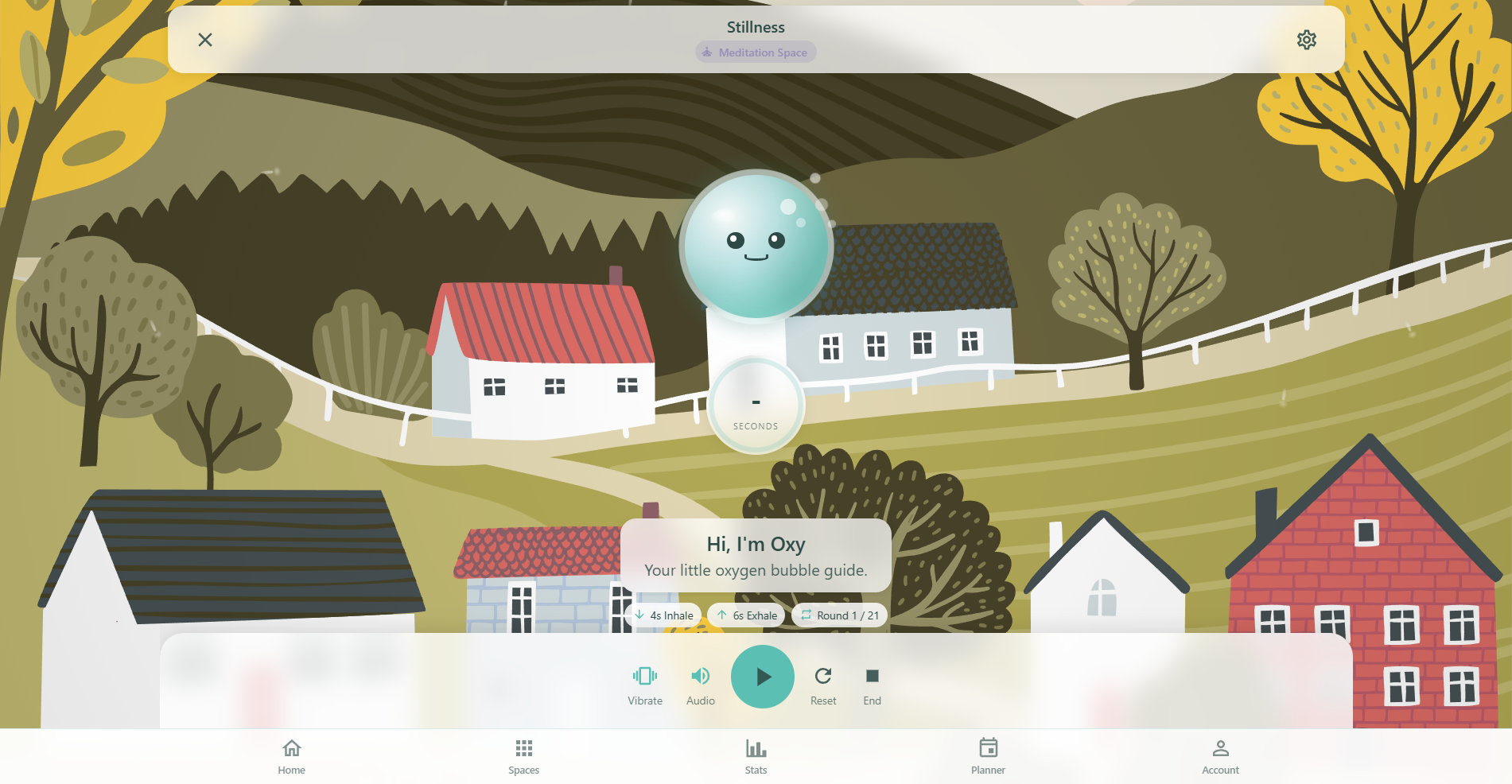
Once the session begins, you enter a full-screen breathing interface with these elements:
- Header: Shows the session name (e.g., "Box Breathing"), the space chip if you started from a space, a close button, and a settings gear icon
- Oxy Visualizer: A large animated Oxy that expands on inhale, holds still, and contracts on exhale - breathing in sync with your rhythm
- Timer Ring: A circular SVG progress ring below Oxy showing how many seconds remain in the current phase
- Transcript: Text labels that slide in for each phase (e.g., "Breathe In", "Hold", "Breathe Out") with optional subtexts. An intro message plays before the breathing begins, and you can tap "Skip to breathing" to jump ahead
- Session Info Chips: Three info chips show your inhale time (e.g., "4s Inhale"), exhale time (e.g., "4s Exhale"), and current round count (e.g., "Round 2 / 8")
Session Background
By default, sessions display animated clouds tinted with the space's color palette. Pro members can choose from premium visual environments instead:
- Aurora Borealis - Northern lights for deep relaxation
- Deep Ocean - Underwater serenity
- Zen Garden - Tranquil Japanese garden
- Starfield & Forest - Nature and cosmos themes
The environment is configured in the Settings dialog under "Session Environment".
Session Controls
A row of five control buttons sits at the bottom of the screen:
- Vibrate: Toggles haptic feedback that pulses with each breathing phase. Shows "Not on iOS" if your device does not support vibration
- Audio: Quickly toggle voice guidance on or off without opening settings
- Play / Pause: The large center button starts, pauses, or resumes the session. When paused, the phase display freezes and the timer stops
- Reset: Restarts the session from round 1 with the same settings
- End: Stops the session and shows the completion screen. Your progress is saved even if you end early
Session Settings
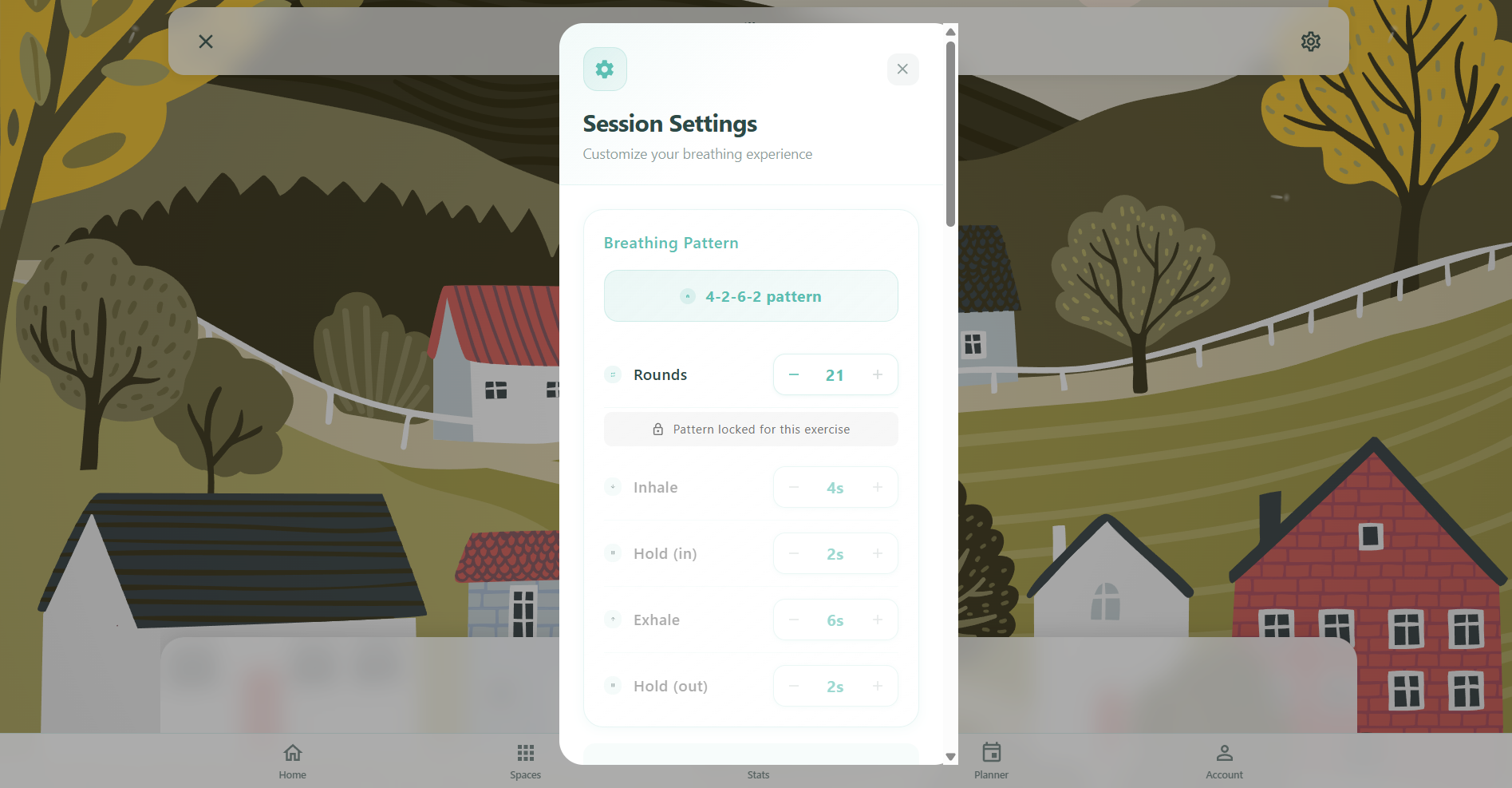
Tap the gear icon in the header to open the Settings dialog. It contains four main sections:
1. Breathing Pattern
Customize the timing of each breathing phase. Signed-in users can adjust:
- Pattern Summary: A badge showing the current pattern (e.g., "4-4-4-4 pattern")
- Rounds: Number of breathing cycles from 1 to 20, controlled with stepper buttons
- Inhale: Duration from 1 to 15 seconds
- Hold (in): Duration from 0 to 15 seconds (0 means no hold after inhale)
- Exhale: Duration from 1 to 15 seconds
- Hold (out): Duration from 0 to 15 seconds (0 means no hold after exhale)
When you start a session from a breathing space, the inhale, hold, exhale, and hold timings are locked to preserve that routine's specific pattern. You can still change the number of rounds. A lock icon and notice ("Pattern locked for this exercise") appear when timing is locked.
Users who are not signed in see a prompt to sign in before they can customize the breathing pattern.
2. Session Environment
Choose the visual backdrop for your session. The default is animated clouds in your space's colors. Pro members can select from premium environments like Aurora Borealis, Deep Ocean, Zen Garden, Starfield, and Forest. Each environment transforms the entire session background.
Users who are not signed in see a prompt to sign in before they can personalize the environment.
3. Audio
The audio section gives you full control over what you hear during the session:
Voice Guidance
- Toggle voice guidance on or off
- Adjust the voice volume with a slider (0-100%)
- Select a voice from the dropdown. Free voices are available to everyone; additional Pro voices are marked with a crown icon
Ambient Sounds
- Toggle ambient sounds on or off
- Choose a sound type from a grid of options (e.g., rain, ocean, forest). Some sounds are free, others require Pro
- Adjust ambient volume independently (0-100%)
Background Music
- Toggle background music on or off
- View the currently selected track or choose a new one by tapping "Manage"
Sound Mixer PRO
- Mix multiple ambient sounds together to create your perfect soundscape
Binaural Beats PRO
- Add binaural beats designed for focus, relaxation, or deep meditation
4. Accessibility
Accessibility options ensure everyone can use breathing sessions comfortably:
- Show Transcripts: Display text labels for each breathing phase on screen
- High Contrast: Increase the contrast of the interface for better visibility
- Transcript Size: Choose between Small, Medium, or Large text (visible when transcripts are enabled)
At the bottom of the settings dialog, you can Reset to Default to restore all settings, or tap Apply to save your changes.
After Your Session
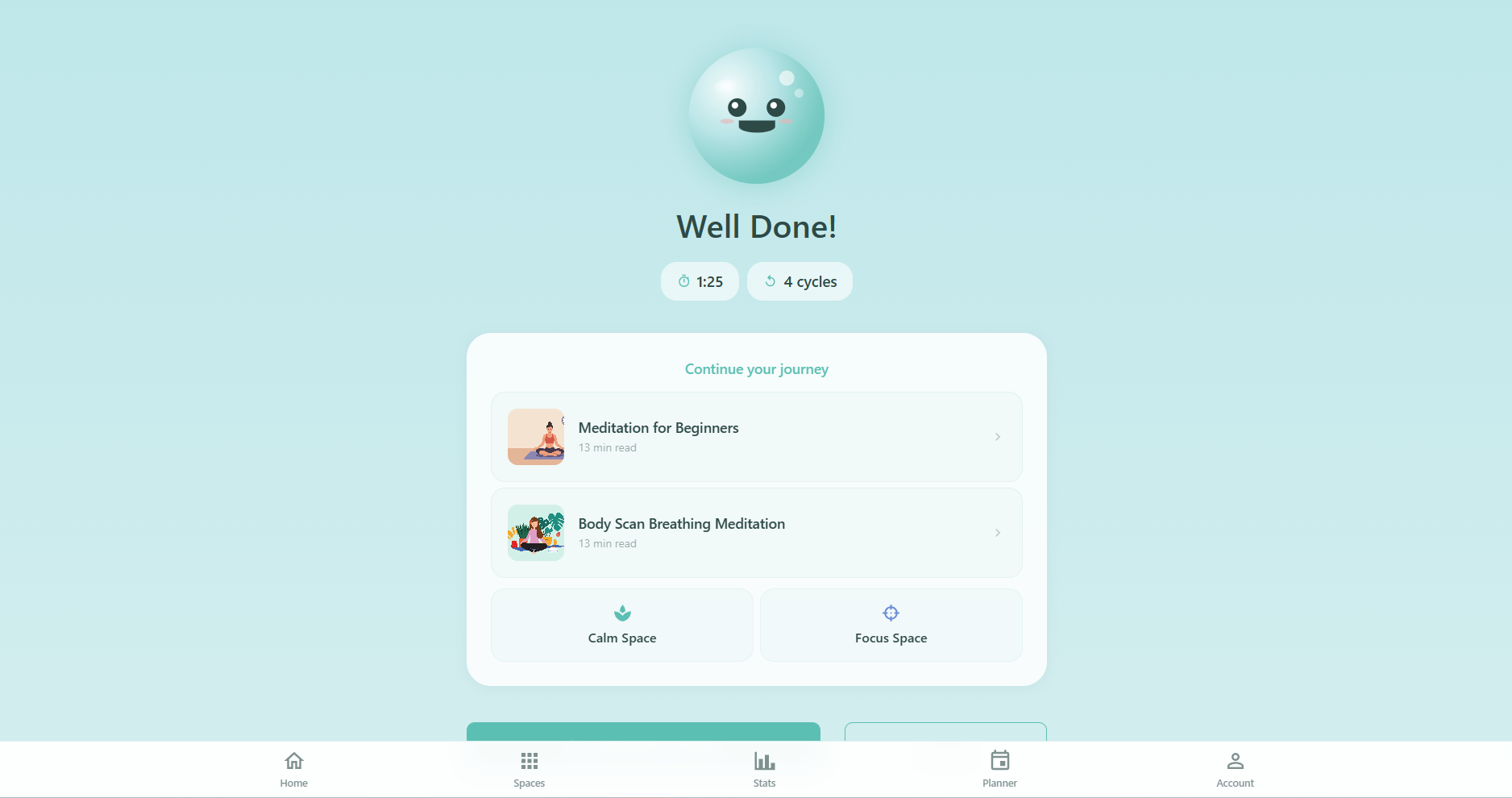
When all rounds are completed (or you tap End), a completion screen appears with Oxy in a celebratory mood and a "Well Done!" message. The screen shows:
- Session Stats: Your session duration and total breathing cycles completed
- Mood & Energy Tracking PRO: Rate your post-session mood and energy on a 1-5 scale using icon buttons. This data is tracked over time in your statistics
- Add a Note: Tap to write a journal note about how the session felt. Notes are saved to your breathing journal
- Related Articles: Recommended articles related to the breathing space or technique you just practiced
- Related Spaces: Explore other breathing spaces that complement your session
Two action buttons let you choose what to do next:
- Breathe Again: Restart the same session with the same settings
- Done: Return to the previous page (your space, the home screen, or the planner)
Breathing Templates
Respiro includes over 30 breathing templates, each designed for a specific purpose. Examples include:
- Box Breathing (4-4-4-4): A balanced pattern used by Navy SEALs for stress relief and focus
- 4-7-8 Breathing: Dr. Andrew Weil's relaxation technique with extended holds and exhales
- Calm Breath (4-2-6-2): A gentle pattern with longer exhales for relaxation
- Energizing Breath (2-1-2): Quick rhythmic breathing to boost energy
- Panic Protocol (3-8): Extended exhale pattern specifically for acute anxiety
- Morning Energizer (3-2): Caffeine-free wake-up protocol
- Finding Stillness (5-7): Settling breath for meditation and inner stillness
Each template specifies its default timing, recommended cycles, and difficulty level. Templates are grouped into breathing spaces by their goal (Calm, Focus, Sleep, Energy, Recovery, and more).
Tips for Better Sessions
- Use headphones for the best audio experience with voice guidance and ambient sounds
- Find a quiet, distraction-free environment and put your phone on Do Not Disturb
- Sit or lie in a comfortable position with your back straight
- Breathe through your nose unless the technique instructs otherwise
- Start with shorter sessions (4-6 rounds) and gradually increase as you get comfortable
- Close your eyes to focus on Oxy's guidance and your breathing rhythm
- Use the pre-session mood check-in to become aware of how you feel before starting
- Practice at the same time daily for best results - use the Planner to set reminders