Journal
Track your mood and energy after every breathing session
The Journal is where your breathing practice meets self-awareness. After every session, you can rate your mood and energy on a 1-5 scale and add personal notes. Over time, the Journal reveals which techniques work best for you, what time of day gives the best results, and how your wellbeing trends are changing — turning raw practice into genuine insight.
Page Layout
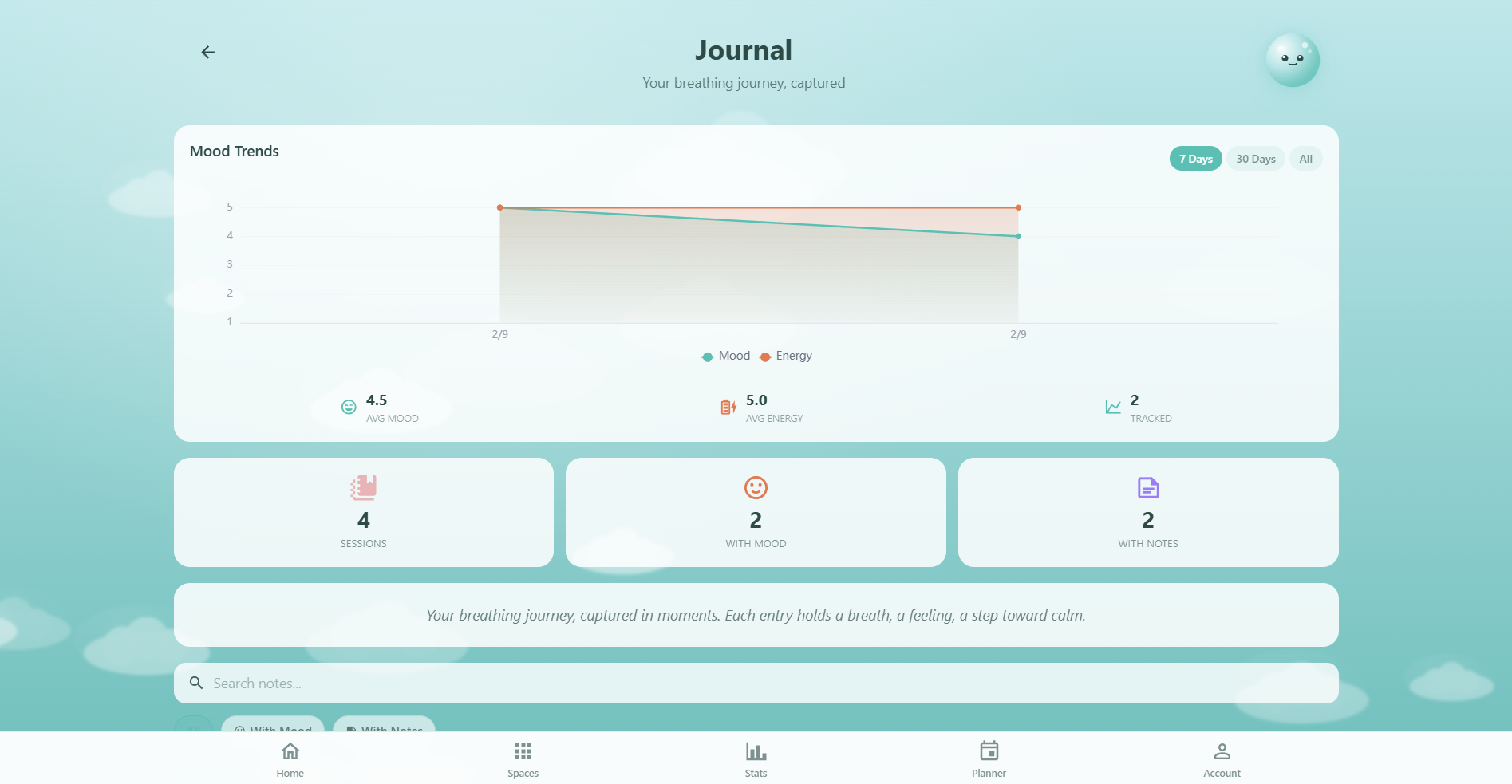
The Journal page opens with a Mood Trends Chart at the top (visible once you have 2+ tracked sessions), followed by a limits banner for free users, a stats row, and your session entries grouped by date. Below the entries you'll find the CSV export card and, for Pro members, a full analytics section with personalized insights.
Mood & Energy Check-In
There are two ways to record how you feel:
- After a session: When you finish a breathing session, a post-session check-in dialog appears. Rate your mood and energy, then continue. If you also did a pre-session check-in, Respiro calculates your mood change automatically
- From the Journal: Tap any session card to open the note editor. You can add or edit mood, energy, and a written note at any time — even days later
The Mood Scale
Mood is rated on a 1-5 scale using expressive face icons:
- 1 — Low: Sad face
- 2 — Fair: Confused face
- 3 — Okay: Neutral face
- 4 — Good: Happy face
- 5 — Great: Excited face
Mood values appear in teal on charts and badges throughout the Journal.
The Energy Scale
Energy uses a 1-5 battery icon scale:
- 1: Nearly empty battery (10%)
- 2: Low battery (30%)
- 3: Half battery (50%)
- 4: High battery (80%)
- 5: Charging battery (full)
Energy values appear in warm orange on charts and badges.
Journal Entries
Every completed breathing session automatically appears in the Journal, grouped by date (most recent first). Each entry card shows:
- Time: When the session was completed
- Template name: The breathing technique used (e.g. "Box Breathing 4-4-4-4")
- Mood badge: Your post-session mood rating as a face icon (if recorded)
- Energy badge: Your post-session energy rating as a battery icon (if recorded)
- Note indicator: Shows if you wrote a note for this session
- Space tag: The Breathing Space the session came from, color-coded to that space
- Duration & cycles: How long you practiced and how many breathing cycles you completed
- Note preview: First 80 characters of your note (if any)
Date headers show "Today" and "Yesterday" for recent entries, with full dates for older sessions. Each header also shows the number of sessions for that day.
Adding & Editing Entries
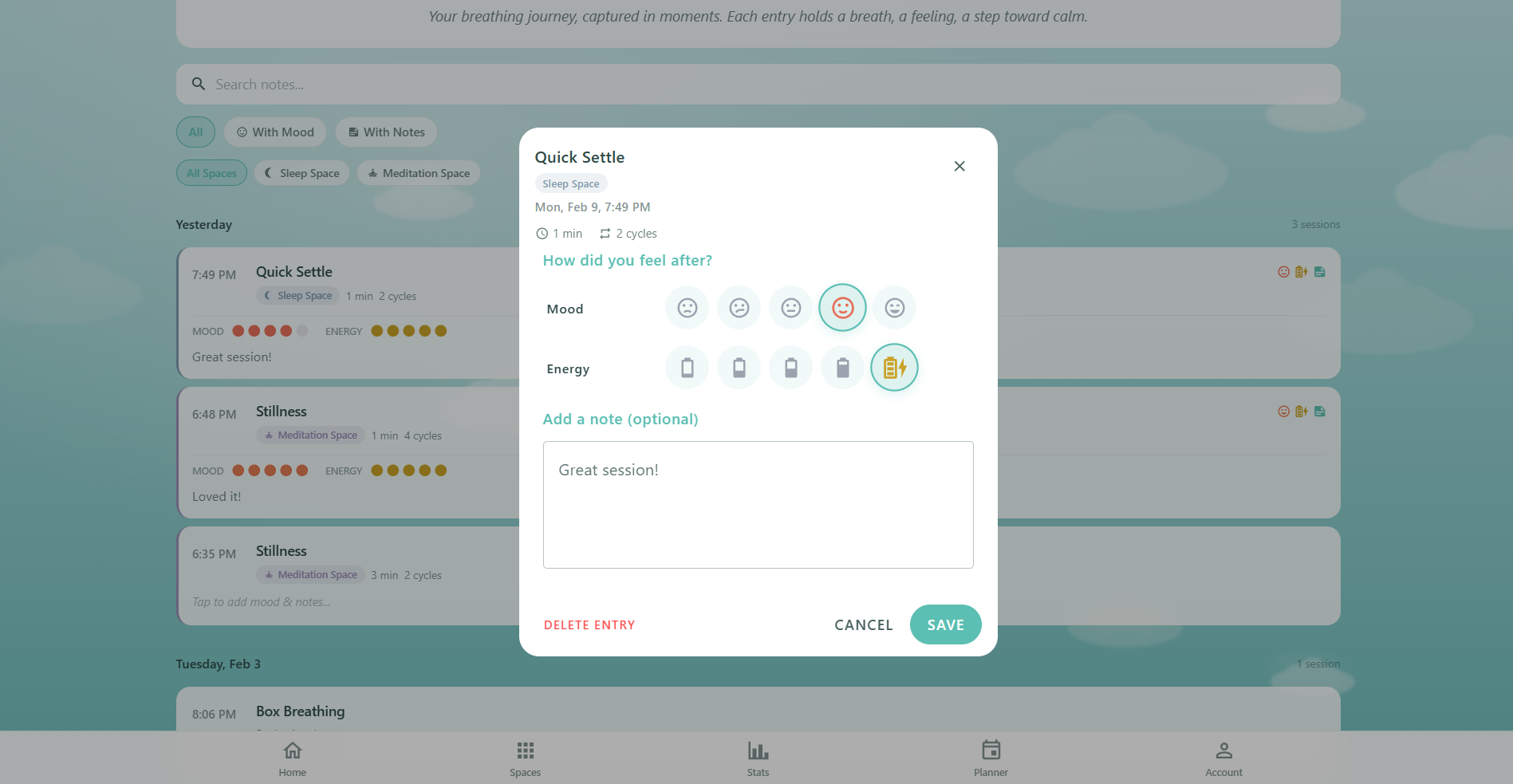
Tap any session card to open the note editor dialog. The editor shows a session summary (time and cycles) plus three editing sections:
- Mood: Tap one of the 5 face icons to set your post-session mood
- Energy: Tap one of the 5 battery icons to set your energy level
- Notes: Write a personal reflection in the text area (auto-growing, unlimited length for Pro)
Tap Save to keep your changes, or Delete to remove the mood/note data from that session. You can re-open and edit any entry at any time.
Search & Filter
Find specific entries using the search and filter tools below the stats row:
- Search bar: Search your notes by keyword — matches are highlighted in real time
- Filter chips: Tap "With Mood" to show only sessions with mood/energy data, or "With Notes" to show only sessions with written notes
- Space filter: Colored chips for each Breathing Space appear dynamically based on your session history. Tap a space chip to show only sessions from that space
Filters combine — for example, you can search for "focus" within "With Mood" sessions from the "Calm Space" to find exactly what you need.
Mood Trends Chart
Once you have 2 or more tracked sessions, a line chart appears at the top of the Journal showing your mood and energy over time:
- Mood line: Teal line with a gradient fill showing your mood ratings (1-5) over time
- Energy line: Warm orange line showing energy ratings alongside mood
- Period selector: Toggle between 7 Days, 30 Days, or All to zoom in or out
- Summary stats: Average mood, average energy, and total tracked sessions displayed below the chart
The chart updates in real time as you add new mood and energy data. Hover or tap data points to see the exact value and date.
Pro Analytics PRO
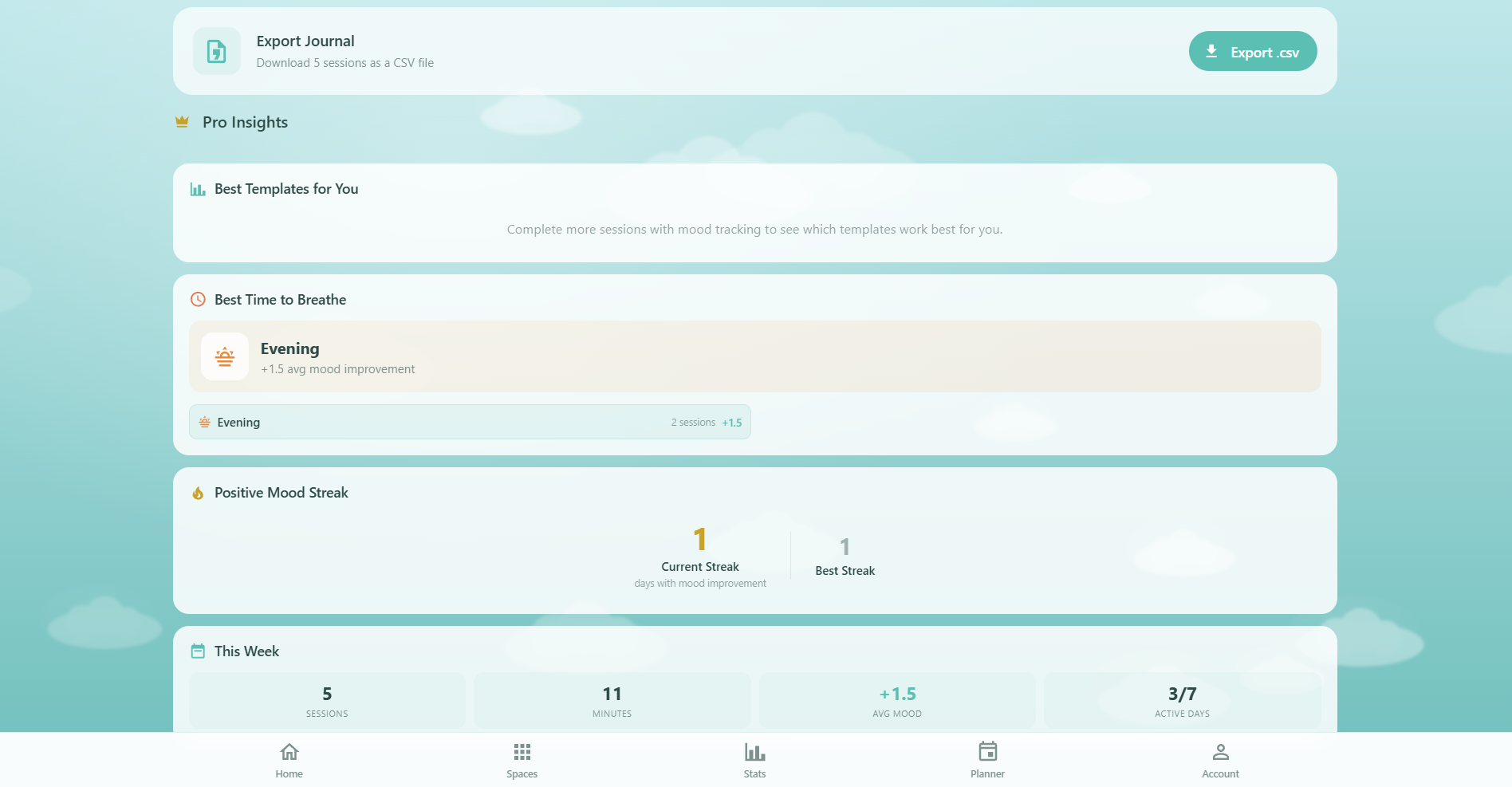
Pro members unlock a full analytics section below the journal entries with 5 insight cards:
- Best Templates for You: Your top 3 breathing techniques ranked by average mood improvement (requires 2+ sessions per template). Shows which patterns make you feel the best
- Best Time to Breathe: Mood improvement broken down by time of day — Morning, Afternoon, Evening, and Night — so you can schedule sessions when they help most
- Positive Mood Streak: Your current and longest streak of consecutive days where your mood improved after breathing. A motivating metric that rewards consistency
- This Week: A weekly summary showing total sessions, breathing minutes, average mood change, and active practice days for the last 7 days
- Personalized Suggestion: An AI-generated recommendation based on your mood patterns, telling you which template to try next and when (requires 5+ tracked sessions)
Stats Row
A quick-glance stats row appears near the top of the page with 3 metrics:
- Total sessions: All completed breathing sessions
- Sessions with mood: How many sessions have mood or energy data
- Sessions with notes: How many sessions have written notes
CSV Export
Export your complete journal to a spreadsheet-compatible CSV file. Tap the Export to CSV button to download a file named respiro-journal-YYYY-MM-DD.csv containing 13 columns:
- Date, Time, Template, Duration (min), Cycles
- Mood Before, Mood After, Mood Change
- Energy Before, Energy After, Energy Change
- Space, Note
The export includes all sessions in your history. Use it for personal analysis, sharing with a wellness coach, or simply backing up your data.
Data & Sync
Session history and journal notes are stored locally and sync to the cloud when you're signed in via Cloud Sync. Mood and energy data is stored directly on each session, while notes are stored separately and linked by session ID. Both sync independently to Firestore with smart merge — if you edit on two devices, the most recent change wins.
All journal data is completely private. Only you can see your entries.
Free vs Pro
The Journal is available to all users with generous free-tier limits. Pro members unlock the full experience:
- Free: 5 mood/energy entries, 3 notes, 7-day session history, mood trends chart
- Pro: Unlimited mood entries and notes, full session history, Pro Analytics (template effectiveness, time insights, mood streak, weekly summary, personalized suggestions), and CSV export
A limits banner at the top shows your remaining free entries so you always know where you stand.